This guide covers the full install for Peak on SkyGPC — the #1 ranked Cronus Zen NBA 2K script. Platform-specific steps split off near the end; everything before that is identical across consoles.
What you need before you start
- A Cronus Zen device and its USB cable (a data cable — charge-only cables will not work)
- Your controller (DualSense, Xbox Wireless Controller, or a supported PC controller)
- A Windows or macOS computer with Zen Studio installed
- Your script file, downloaded after purchase
Step 1 — Update Zen Studio and firmware
- Download the latest Zen Studio from the official Cronus site and install it
- Connect the Zen to your computer using the rear PROG port
- Accept the firmware update prompt if one appears and let it finish without unplugging
- Confirm the device shows as connected in the Zen Studio status bar
Step 2 — Generate or download your script
Run the plug-and-play tuning first — it produces a file tuned to your build, jumpshot and connection instead of a generic one.
Step 3 — Compile and write to the Zen
- Open the .gpc file in Zen Studio's Programmer tab
- Click Compile and wait for a clean build with no errors
- Select an empty memory slot
- Click Program Device and wait for the confirmation
- Disconnect from the computer
Step 4 — Connect to your console
- Plug the console into the Zen's rear (PROG) port
- Plug your controller into the front (A) port
- Wait for the Zen's display to show the active slot number
- Confirm the controller responds in the console dashboard
Step 5 — Platform-specific steps
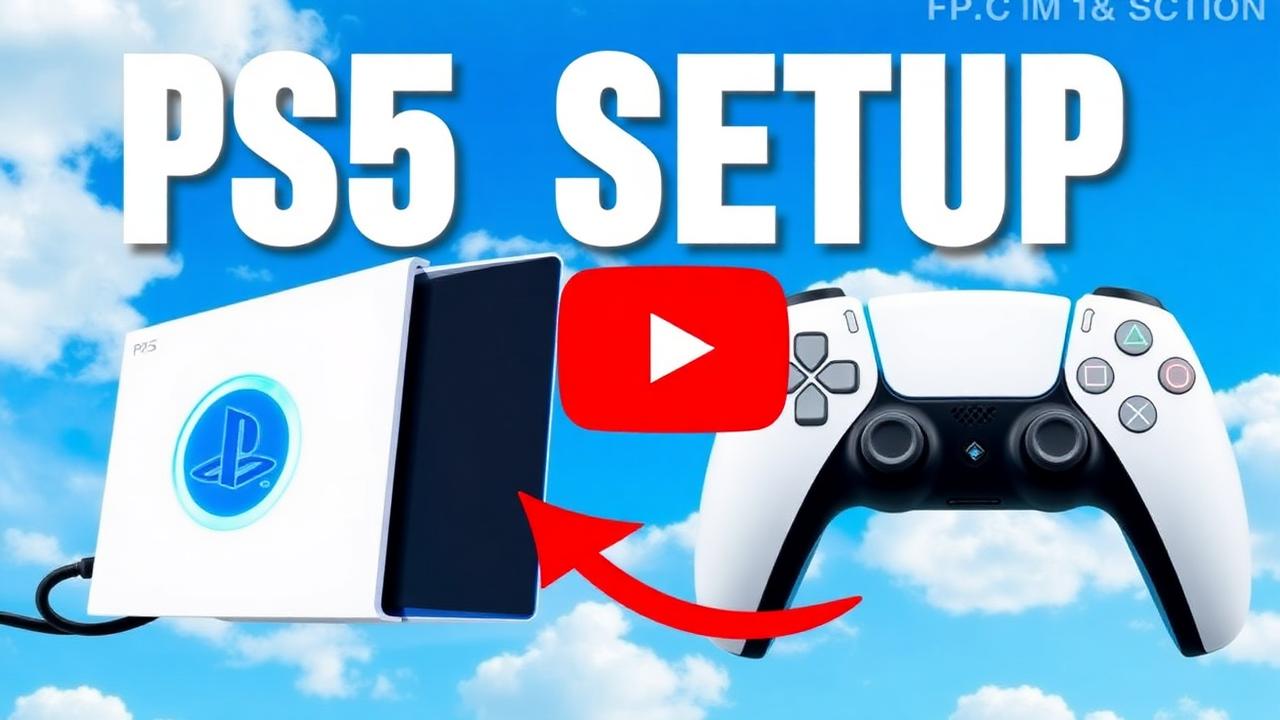
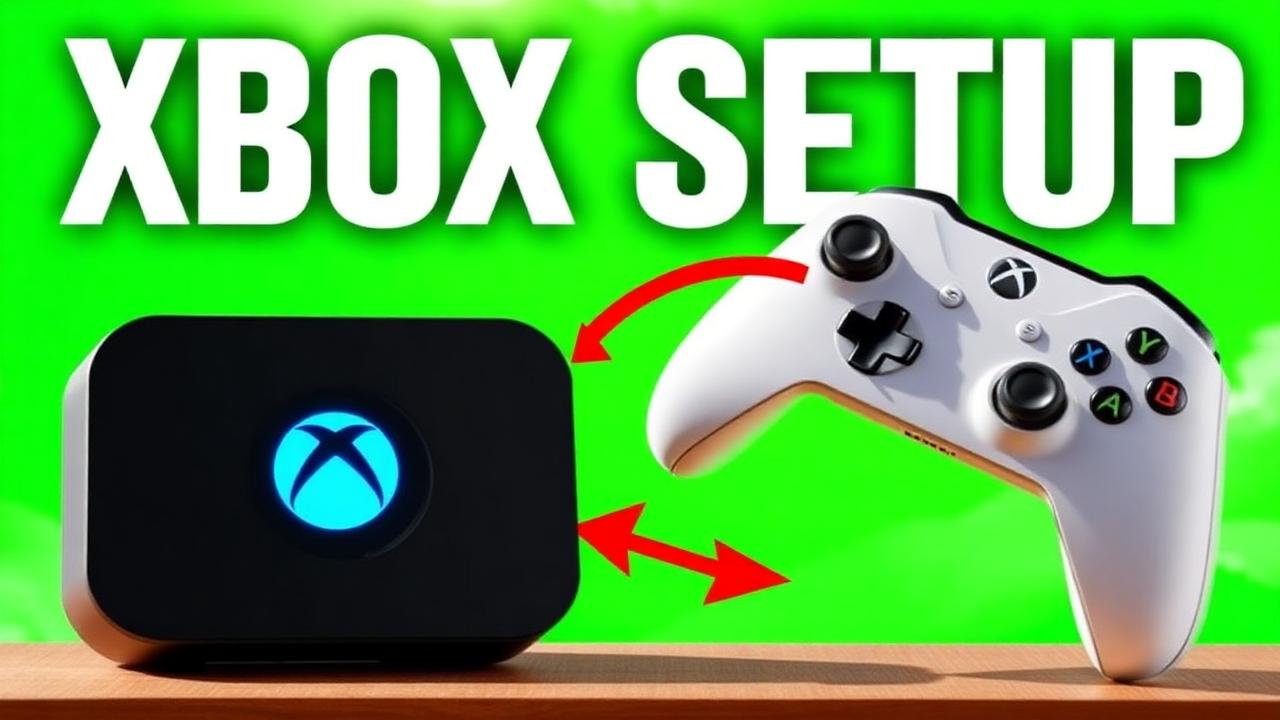
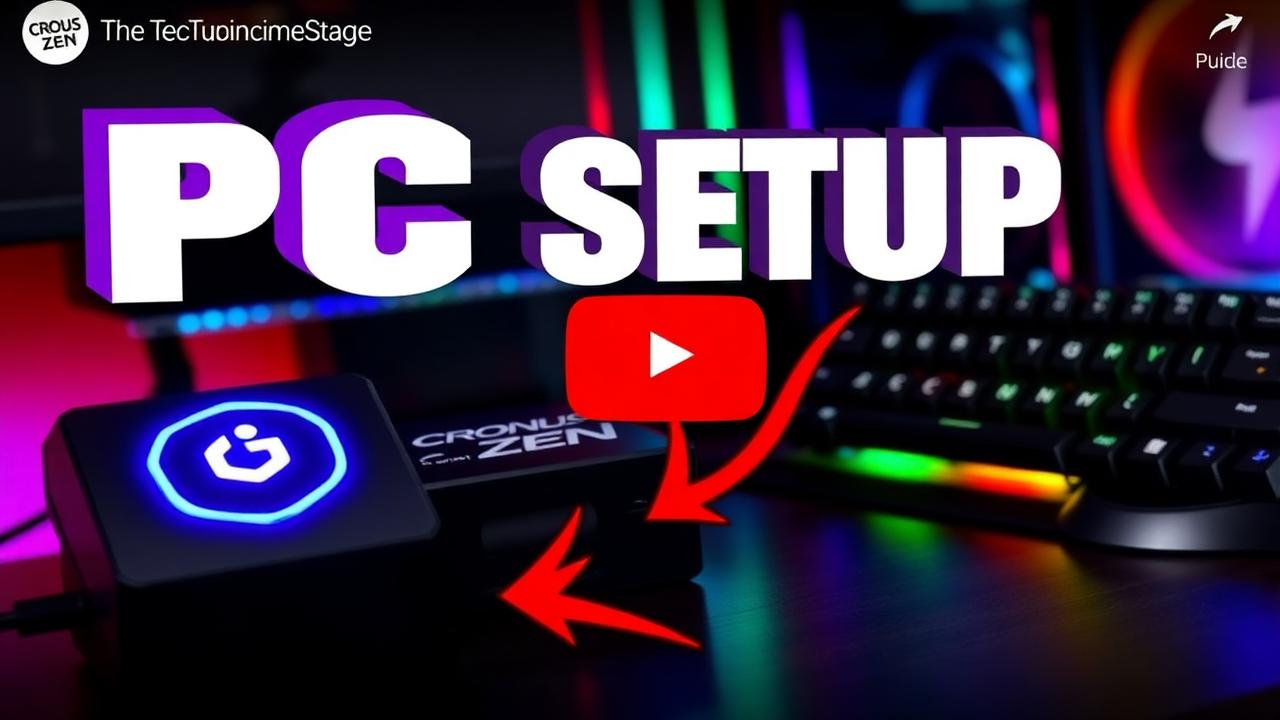
PS5 requires a one-time bypass; Xbox and PC do not. Follow the guide for your platform: PS5 setup · Xbox setup · PC setup.
Step 6 — Verify in MyCourt before you queue
- Load into MyCourt or a practice environment
- Take twenty standing catch-and-shoot attempts and confirm your green rate
- Take ten off-dribble attempts and ten fades
- If results are inconsistent, re-check your shot-meter setting matches the profile you generated
Ready to stop missing?
Peak is the #1 ranked Cronus Zen script for NBA 2K27 — 4.9★ from 1,170+ verified reviews and 21,000+ active users.
Common problems
| Symptom | Most likely cause | Fix |
|---|---|---|
| Script won't compile | Outdated Zen Studio | Update Zen Studio and retry |
| Device not detected by computer | Charge-only cable | Swap to a data cable |
| Controller not detected by console | Ports reversed | Controller front, console rear |
| Inputs register but no greens | Wrong slot active | Cycle to the correct slot on the Zen |
| Greens stopped working overnight | 2K patch | Download the updated build from your vendor |
Anything not covered here is in our FAQ and troubleshooting hub and the full troubleshooting checklist.
Frequently asked questions
How long does setup take?
Around ten minutes for a first-time user, including flashing the script and connecting the Zen. Repeat installs take under two minutes.
Do I need Zen Studio?
Yes. Zen Studio is Cronus's free desktop application and it's how the script gets written to the device.
Why isn't my controller detected?
Controller goes into the front (A) port and the console into the rear port. On PS5 you also need to complete the one-time bypass step first.
Do I need to re-flash after every 2K patch?
Only when your vendor ships an updated build, which on Peak is typically weekly. Re-flashing takes under two minutes.